Best of the
Best
Editors' picks and our top buying guides










Best of the
Best
Editors' picks and our top buying guides
Latest

Sling TV: Get $10 Off Your First Month
5 minutes ago
Peacock's Pricier Plans: What to Know About the Subscription Increase
6 minutes ago
Every Cool Thing Announced For Star Wars Day 2024: From Lego to a Giant Darth Vader
6 minutes ago
Best Unlimited Data Plans for May 2024
6 minutes ago
Man City vs. Wolves Livestream: How to Watch English Premier League Soccer From Anywhere
36 minutes ago
ACP Funding Drought: What You Need to Know and Alternative Options
36 minutes ago
Katt Williams' Live Netflix Special: Here's How to Stream the Show From Anywhere
51 minutes ago
Best Amazon Deals: Take Advantage of Deep Discounts on Tech, Home Goods and More
1 hour ago
This Is the Way to 20% Off Ruggable Star Wars Rugs and Washable Doormats
1 hour ago
Social Security May Check 2024: Find Out When Your Money Will Arrive
1 hour ago
Generative AI Is Coming for Video Games. Here's How It Could Change Gaming
1 hour ago
Best Internet Providers in Daytona Beach, Florida
1 hour ago
Missing the ACP? Sign Up for Lifeline and Cut Costs on Your Internet Bill
1 hour ago
Brentford vs. Fulham Livestream: How to Watch English Premier League Soccer From Anywhere
2 hours ago
Sheffield United vs. Nottingham Forest Livestream: How to Watch English Premier League Soccer From Anywhere
2 hours agoMore to Explore
Reviews, advice and more from CNET's experts.






Get the best price on everything CNET Shopping helps you get the best prices on your favorite products. Get promo codes and discounts with a single click.
Add to Chrome - it's free!
Our Expertise
Expertise Lindsey Turrentine is executive vice president for content and audience. She has helped shape digital media since digital media was born.
0357911176
02468104
024681025
Tech


















Upgrade your inbox
Get CNET Insider
From talking fridges to iPhones, our experts are here to help make the world a little less complicated.
Money











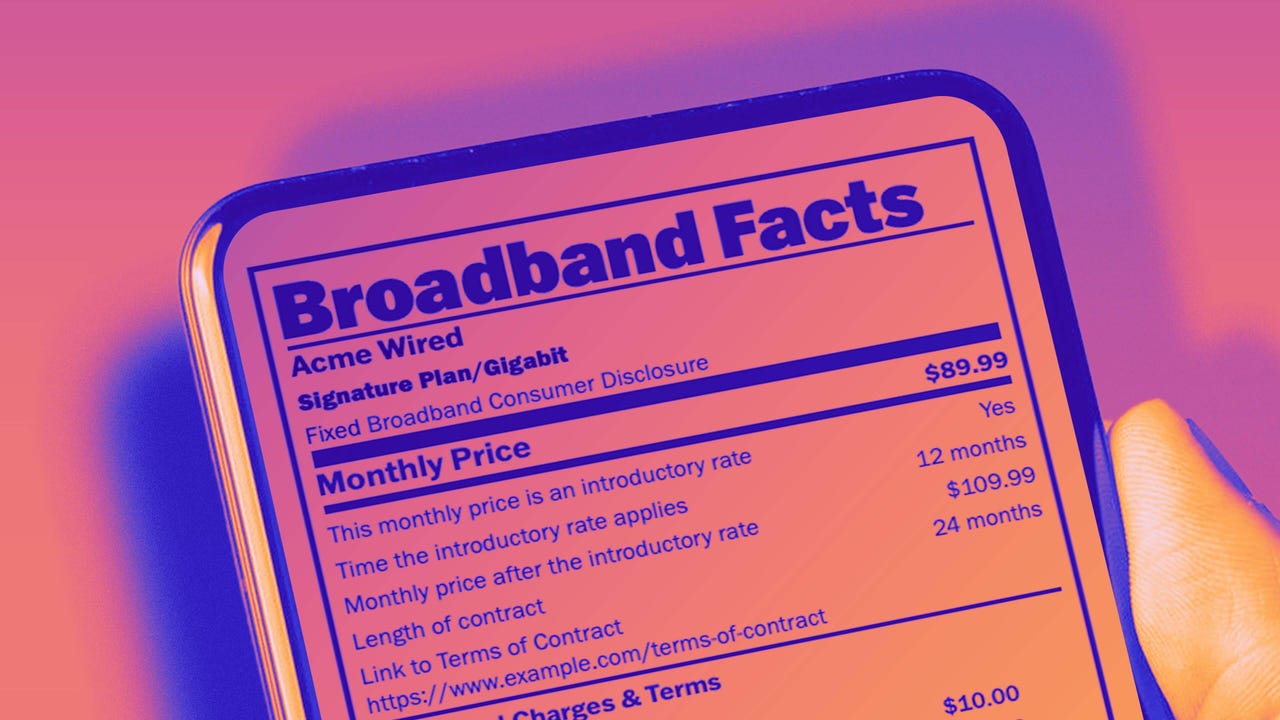
Crossing the Broadband Divide
Millions of Americans lack access to high-speed internet. Here's how to fix that.







Energy and Utilities













Deep Dives
Immerse yourself in our in-depth stories.



Get the best price on everything CNET Shopping helps you get the best prices on your favorite products. Get promo codes and discounts with a single click.
Add to Chrome - it's free!
Internet










Sleep Through the Night
Get the best sleep of your life with our expert tips.







Get the best price on everything CNET Shopping helps you get the best prices on your favorite products. Get promo codes and discounts with a single click.
Add to Chrome - it's free!
Tech Tips
Get the most out of your phone with this expert advice.






Get the best price on everything CNET Shopping helps you get the best prices on your favorite products. Get promo codes and discounts with a single click.
Add to Chrome - it's free!

Home











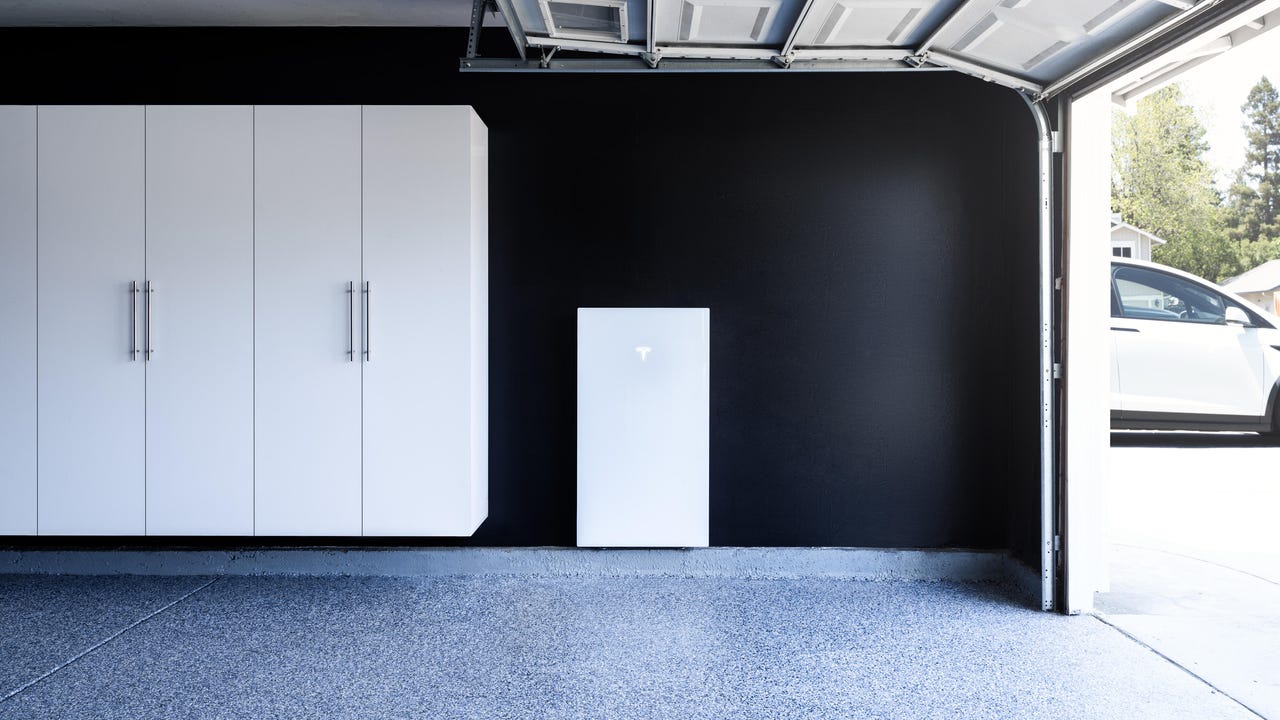
Living Off Grid
CNET's Eric Mack has lived off the grid for over three years. Here's what he learned.





